Windows (WSL) — detailed guide
On Windows, odpm runs via WSL2 and Docker Desktop. Run your project and odpm --init on the Linux filesystem (/home/...), not on C:\ via /mnt/c — otherwise bind mounts in Docker will be slow.
Why use WSL instead of “plain Windows”
When working with directories on the Windows drive (/mnt/c/...), files look like network shares to WSL, and mounting them into a container is very slow. Keep the odpm working directory inside WSL (/home/<user>/projects/...).
Limitations: copying between Windows and WSL is slow; the WSL disk grows dynamically. For small and learning projects this is fine; for heavy industrial development, native Linux is more reliable. Or you know exactly what you are doing.
Prerequisites
Installing Docker Desktop usually pulls in WSL2 and the docker-desktop / docker-desktop-data utility distros.
Next, install a separate Linux distro for day-to-day work — the original article uses Debian (steps below). Ubuntu works too; apt commands are the same.
1. Enable WSL (PowerShell as administrator)
Enable-WindowsOptionalFeature -Online -FeatureName Microsoft-Windows-Subsystem-Linux
Check the WSL version and switch to WSL2 — see Microsoft documentation.
To remove an extra distro if needed — wsl --unregister.
2. Install Debian in WSL
wsl --install -d Debian
Debian is not essential; you can use Ubuntu or another distro, but all steps below were tested on Debian and may differ, so keep that in mind.
On first launch, set a username and password. The example below uses user odoo (you can pick your own name):
odoo@DESKTOP-XXXXXX:~$
To log in again:
wsl --distribution Debian --user odoo
3. Configure Docker Desktop
Start Docker Desktop.
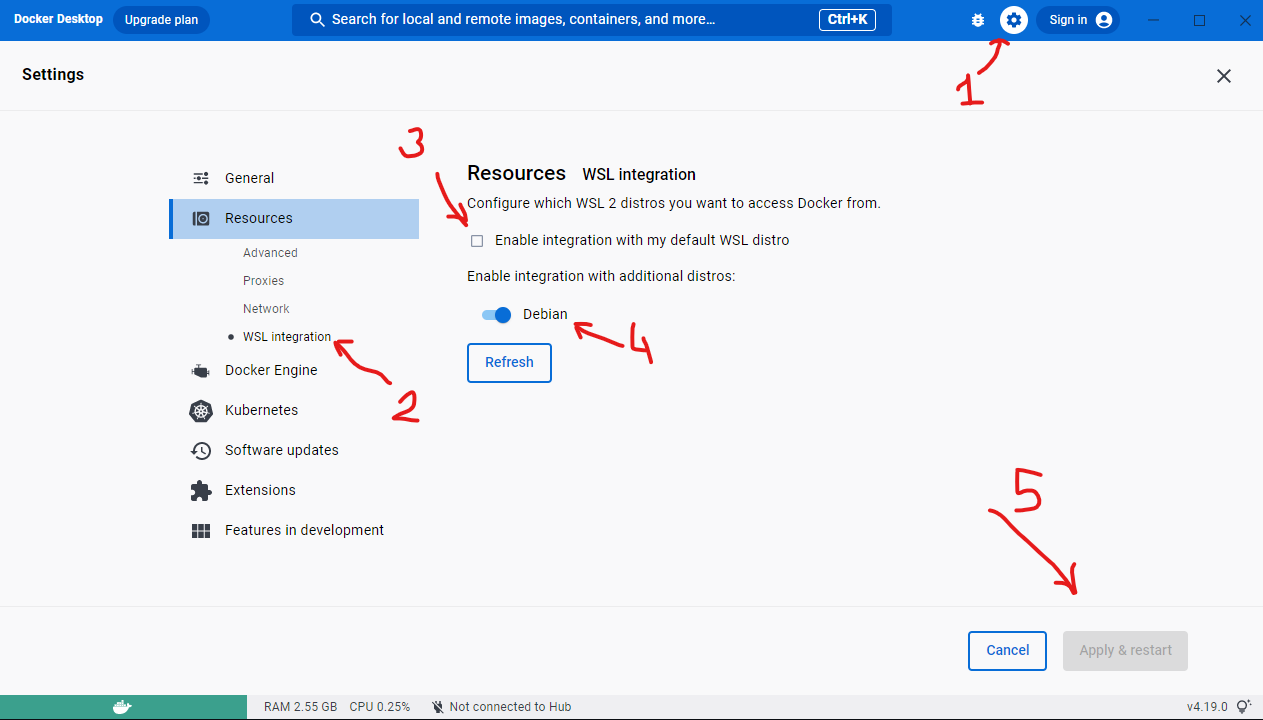
- Open Settings (gear icon).
- Go to Resources → WSL integration (older versions: WSL Integration).
- Disable the built-in
docker-desktopdistro if it gets in the way (as in the original article). - Enable integration for Debian.
- Apply & restart.
4. VS Code: Remote Development extension
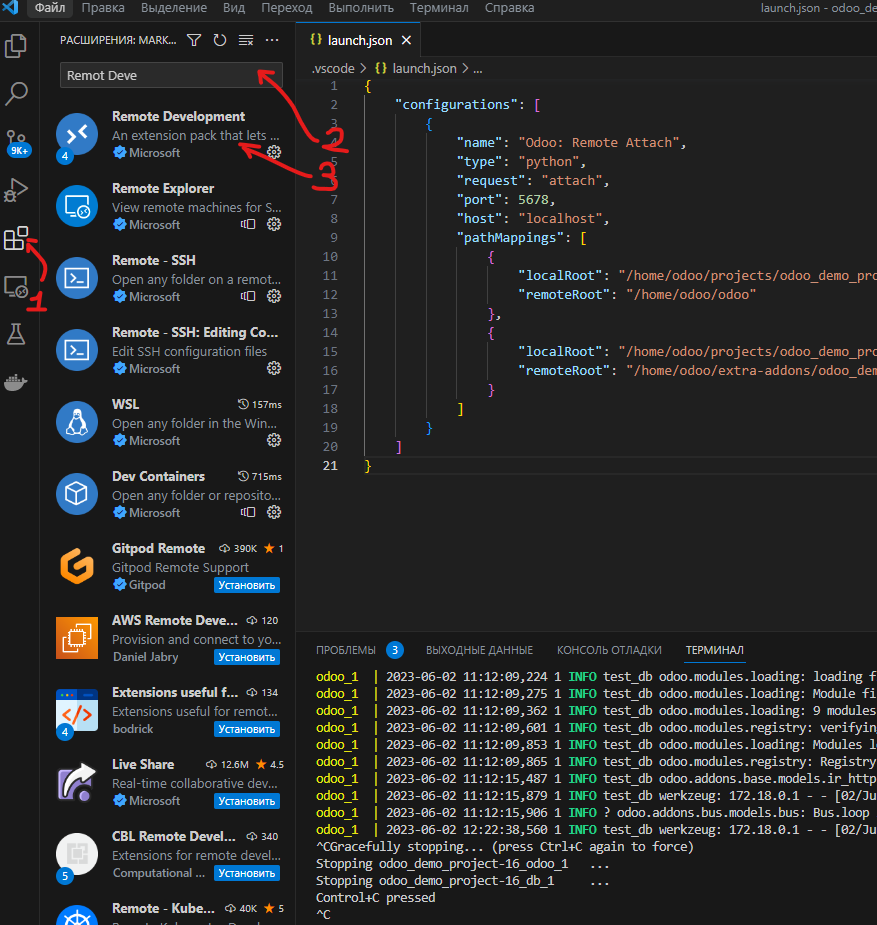
- Open the Extensions panel.
- Search for Remote Development (or WSL).
- Install it.
5. Connect to Debian (WSL)
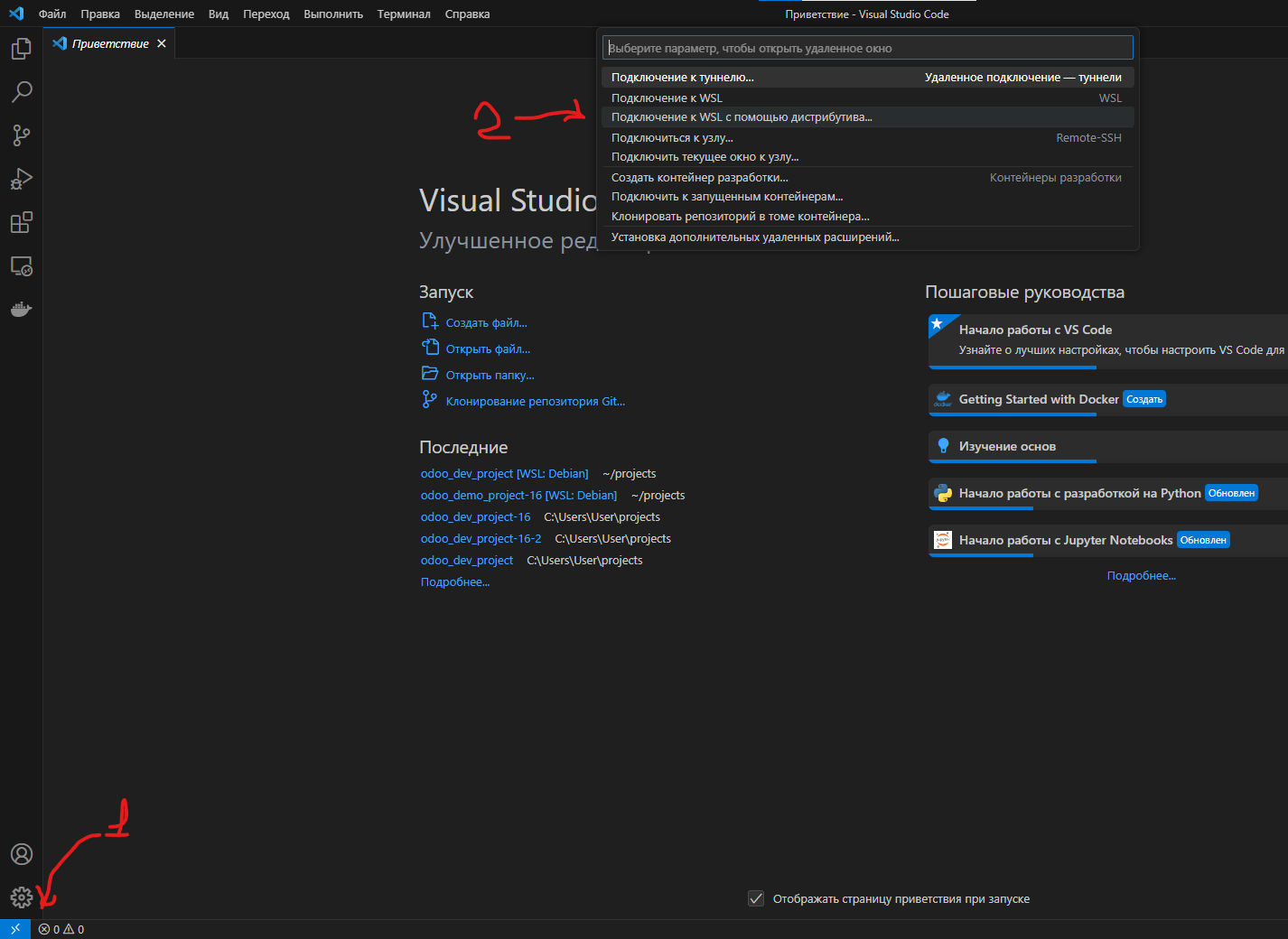
- Click Remote in the bottom-left corner (or use the Command Palette).
- WSL: Connect to WSL → choose Debian.
The first connection may take several minutes (installing the server component in WSL).
6. Working directory in WSL
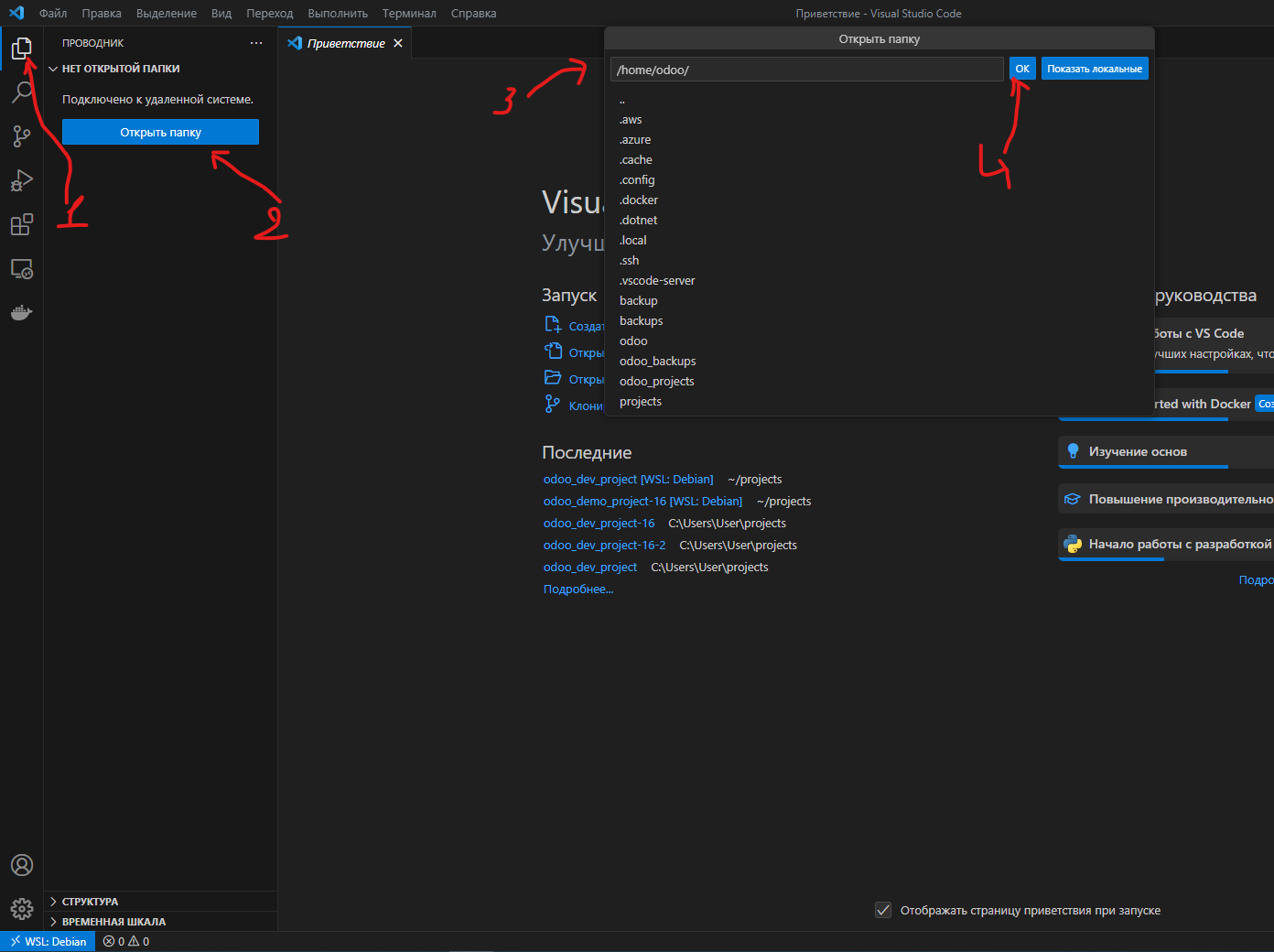
- File → Open Folder.
- Pick your home directory, for example
/home/odoo.
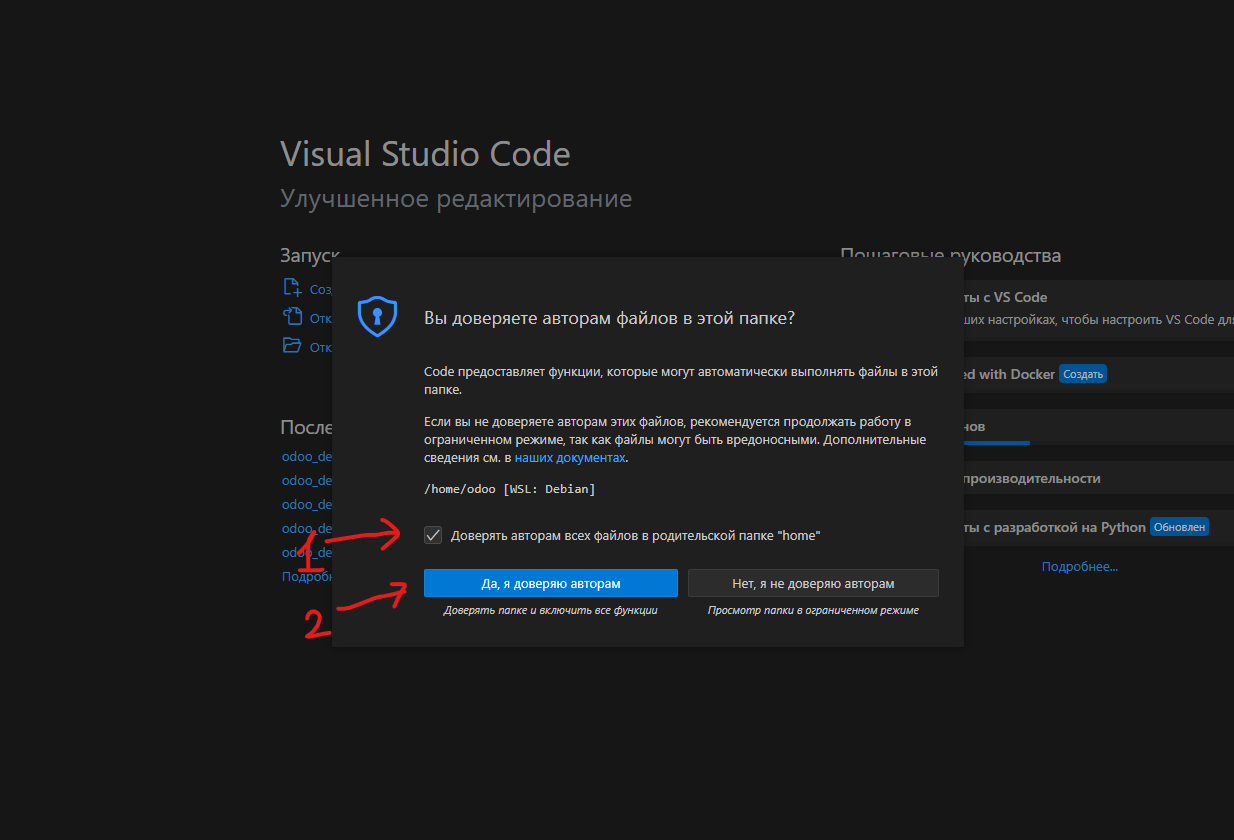
- When asked about trusting authors — check “trust” and confirm.
Open the integrated terminal: Terminal → New Terminal.
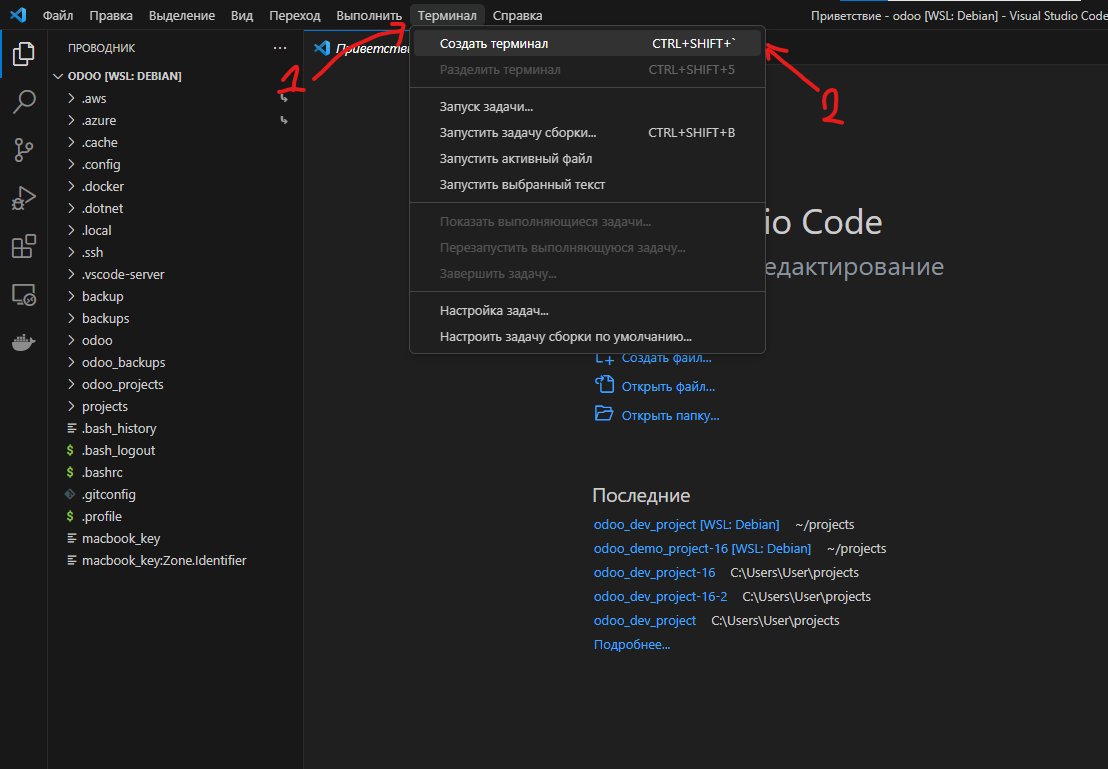
The terminal should be inside Debian (status bar: WSL: Debian).
7. Packages in Debian and installing odpm
Minimal set:
sudo apt update
sudo apt install -y git
Install odpm using one of these methods:
Option A — .deb (recommended): see Debian / Ubuntu install — download a .deb from GitHub Releases or add the APT repository.
sudo apt install ./odpm_*.deb
odpm --version
Option B — pip / pipx: see pip and source install.
Optional for file navigation:
sudo apt install -y mc
User home directory: /home/odoo (or your username). Linux filesystem root is /.
8. Project directory and first odpm --init
mkdir -p ~/projects
cd ~/projects
mkdir my-odoo-project-17
cd my-odoo-project-17
Initialize (substitute your git repository):
odpm --init https://github.com/your-org/your-odoo-project.git --branch 17.0
Full walkthrough without a demo repo — Local development from scratch.
The wizard will ask about directories and scenario; for unfamiliar items you can press Enter (defaults).
After preparation:
odpm -d test_db -i -u
Browser: http://127.0.0.1:8069.
Open the project folder in VS Code via Open Folder → /home/odoo/projects/my-odoo-project-17 (already in a WSL session).
9. Git and SSH
For private repositories, set up an SSH key inside WSL (Linux instructions, not Windows). See also Repository links.
10. Restarting odpm
Stop: Ctrl+C in the terminal where odpm / compose is running. To start again — run odpm or commands from the CLI reference.
file:// links in WSL
file:///home/odoo/my_addons
Three slashes after file: — see git-links.